> For the complete documentation index, see [llms.txt](https://voicegenie.gitbook.io/voicegenie-ai/llms.txt). Markdown versions of documentation pages are available by appending `.md` to page URLs; this page is available as [Markdown](https://voicegenie.gitbook.io/voicegenie-ai/integrations/public-api-integration.md).
# Public API Integration
The VoiceGenie Public REST API allows you to automate your voice workflows by connecting VoiceGenie to external tools like n8n, Zoho Flow, Zapier, or custom applications. You can programmatically place calls, manage campaigns, and sync call data using simple HTTP requests.
#### 1. How to Enable the Integration
To start using the API integration, follow these navigation steps in your dashboard:
1. Navigate to Integrations: Go to the VoiceGenie Dashboard. On the left sidebar, click on System, then select Integrations.
2. Locate API Integration: Scroll to find the API Integration card. It is designed generically to support various workflow tools.
3. Access Documentation: Click the Integrate button on the card.
* This will open a view listing detailed APIs with different use cases based on your needs.
* You can use these APIs to Place Calls, Start/Stop Campaigns, Fetch Call Data, and more.
***
#### 2. How to Get Your API Credentials
To authenticate your requests, you need a valid Workspace ID and API Key.
1. Go to API Settings: On the left sidebar, click on System and then APIs.
2. Find Your Credentials:
* Workspace ID: Copy the ID listed under the "API Credentials" section.
* API Token: If you already have a token, copy it. If not, click Regenerate Token to create a new secure key.
* *Note: Always keep this key private.*
***
#### 3. Available API Actions
Place a Call
\
`POST /api/v1/publicRestApiActions/placeCall`
Place a call to a customer by specifying the customer number and campaign ID.
* `apiKey` - Your Developer API key.
* `workspaceId` - Workspace to target the call.
* `campaignId` - Campaign identifier to use for the call.
* `customerNumber` - E.164 formatted phone number (e.g., +1234567890).
**Typical Business Scenarios**
* Calling a lead immediately after form submission
* Triggering reminder or follow-up calls from a CRM
* Initiating payment reminder or verification calls
* Launching ad-hoc calls outside scheduled campaigns
* Integrating voice calls into custom workflows
\
**Example Request:**
```
curl -X POST https://core-saas.voicegenie.ai/api/v1/publicRestApiActions/placeCall \
-H "Content-Type: application/json" \
-d '{
"apiKey": "your-api-key",
"workspaceId": "your-workspace-id",
"campaignId": "your-campaign-id",
"customerNumber": "+1234567890",
"customerInformation": {
"first_name": "John",
"last_name": "Doe",
"email": "john@example.com",
"custom_field": "value"
}
}'
```
Get Call Analysis or Status
`POST /api/v1/publicRestApiActions/callAnalysisOrStatus`
Retrieve the analysis or latest status for a customer call by specifying the action type.
* `apiKey` - Your Developer API key.
* `workspaceId` - Workspace where the call originated.
* `campaignId` - Campaign associated with the call.
* `customerNumber` - Customer phone number used in the campaign.
* `action` - Use "analysis" for transcripts or "status" for state.
**Typical Business Scenarios**
* Automatically check whether a customer answered the call or not
* Store call status and conversation transcript in the CRM
* Identify successful, failed, or unanswered calls for follow-up
* Trigger a retry or reminder if the customer did not respond
* Help sales and support teams review past conversations without manual checking
**Example Request:**
Pause/Resume Campaign
`PUT /api/v1/publicRestApiActions/editCampaign`
Pause or resume a running campaign by specifying the campaignId and desired action.
* `apiKey` - Your Developer API key.
* `workspaceId` - Workspace to target the campaign.
* `campaignId` - Campaign identifier to update.
* `action` - Use "pause" or "resume".
**Typical Business Scenarios**
* Pause campaigns automatically during non-working hours or holidays
* Stop calling when daily call limits are reached
* Resume campaigns after approvals or issue resolution
* Pause campaigns when a customer action is completed (e.g. payment received)
* Give operations teams automated control without manual intervention
**Example Request:**
```
curl -X PUT https://core-saas.voicegenie.ai/api/v1/publicRestApiActions/editCampaign \
-H "Content-Type: application/json" \
-d '{
"apiKey": "your-api-key",
"workspaceId": "your-workspace-id",
"campaignId": "your-campaign-id",
"action": "pause"
}'
```
Get Inbound Calls
`POST /api/v1/publicRestApiActions/inboundCallUpdate`
Fetch recent inbound call updates for a campaign to sync with your workflows.
* `apiKey` - Your Developer API key.
* `workspaceId` - Workspace receiving the inbound calls.
* `campaignId` - Campaign tied to the inbound number.
**Typical Business Scenarios**
* Sync inbound calls into CRM records automatically
* Track customers who call back after missed or outbound calls
* Create follow-up tasks for sales or support teams
* Identify missed inbound calls for quick callbacks
* Maintain a complete call history without manual tracking
**Example Request:**
```
curl -X POST https://core-saas.voicegenie.ai/api/v1/publicRestApiActions/inboundCallUpdate \
-H "Content-Type: application/json" \
-d '{
"apiKey": "your-api-key",
"workspaceId": "your-workspace-id",
"campaignId": "your-campaign-id"
}'
```
Check Transfer Status
`POST /api/v1/publicRestApiActions/checkCallTransferStatus`
Check whether a call transfer is pending, completed, or failed for a given campaign.
* `apiKey` - Your Developer API key.
* `workspaceId` - Workspace that initiated the transfer.
* `campaignId` - Campaign associated with the transfer.
**Typical Business Scenarios**
* Confirm whether calls were successfully transferred to agents
* Identify failed transfers that require follow-up
* Notify teams when a transfer does not go through
* Track agent handoff performance
* Improve customer experience by reducing dropped calls
**Example Request:**
```
curl -X POST https://core-saas.voicegenie.ai/api/v1/publicRestApiActions/checkCallTransferStatus \
-H "Content-Type: application/json" \
-d '{
"apiKey": "your-api-key",
"workspaceId": "your-workspace-id",
"campaignId": "your-campaign-id"
}'
```
Remove Customer from Campaign
`PUT /api/v1/publicRestApiActions/pullCustomerFromCampaign`
Remove a specific customer number from an ongoing campaign to stop further outreach.
* `apiKey` - Your Developer API key.
* `workspaceId` - Workspace where the campaign lives.
* `campaignId` - Campaign to update.
* `customerNumber` - E.164 formatted phone number (e.g., +1234567890).
**Typical Business Scenarios**
* Stop calling a customer who has already responded or converted
* Remove customers who request not to be contacted
* Prevent duplicate or unnecessary follow-up calls
* Maintain compliance with opt-out and consent rules
* Improve customer experience by avoiding over-contacting
**Example Request:**
```
curl -X PUT https://core-saas.voicegenie.ai/api/v1/publicRestApiActions/pullCustomerFromCampaign \
-H "Content-Type: application/json" \
-d '{
"apiKey": "your-api-key",
"workspaceId": "your-workspace-id",
"campaignId": "your-campaign-id",
"customerNumber": "+1234567890"
}
```
#### 4. Different Platform integration guide
N8N Workflow Template (Importable JSON)
We have created a ready-to-use n8n workflow template. This workflow triggers when a new row is added to a Google Sheet (e.g., a new lead) and automatically places a call via VoiceGenie.
### **How to Import the VoiceGenie Workflow into n8n**
#### Step 1: Create the JSON File
Copy the code block below and save it as a file named `voicegenie_workflow.json` on your computer.
```
name "My workflow"
nodes
0
parameters
method "POST"
url "https://core-saas.voicegenie.ai/api/v1/publicRestApiActions/placeCall"
sendBody true
specifyBody "json"
jsonBody '={\n "apiKey": "",\n "workspaceId": "",\n "campaignId": "",\n "customerNumber": "{{ $json.customerNumber }}",\n "customerInformation": {\n "first_name": "{{ $json.first_name }}",\n "last_name": "{{ $json.last_name }}",\n "email": "{{ $json.email }}",\n "custom_field": "value"\n }\n}'
options {}
type "n8n-nodes-base.httpRequest"
typeVersion 4.3
position
0 752
1 240
id "2f30f162-2019-4f28-a03c-138ab97c780a"
name "HTTP Request1"
1
parameters
pollTimes
item
0
mode "everyMinute"
documentId
__rl true
value "1_fxMwT8E7cru87wOUk7Jfc5Mp-rOFkHNvv5X2IZ-2Ak"
mode "list"
cachedResultName "Public Api Integrations"
cachedResultUrl "https://docs.google.com/spreadsheets/d/1_fxMwT8E7cru87wOUk7Jfc5Mp-rOFkHNvv5X2IZ-2Ak/edit?usp=drivesdk"
sheetName
__rl true
value "gid=0"
mode "list"
cachedResultName "Sheet1"
cachedResultUrl "https://docs.google.com/spreadsheets/d/1_fxMwT8E7cru87wOUk7Jfc5Mp-rOFkHNvv5X2IZ-2Ak/edit#gid=0"
options {}
type "n8n-nodes-base.googleSheetsTrigger"
typeVersion 1
position
0 512
1 240
id "15c9cd5b-bd3f-4686-aa05-3f32c9241f54"
name "Google Sheets Trigger1"
credentials
googleSheetsTriggerOAuth2Api
id "LE7BhtOJFibtAiOP"
name "Google Sheets Trigger account"
pinData {}
connections
Google Sheets Trigger1
main
0
0
node "HTTP Request1"
type "main"
index 0
active false
settings
executionOrder "v1"
versionId "c63068ad-a5ea-4baa-b265-2ac67d80d460"
meta
templateCredsSetupCompleted true
instanceId "4f98f1a7bd9f1104897e5defbe553281faf893c086b2e01a82a6d9b0bce80985"
id "vcqNVR8y9UpHDB5N"
tags []
```
#### Step 2: Import into n8n
1. Open n8n.
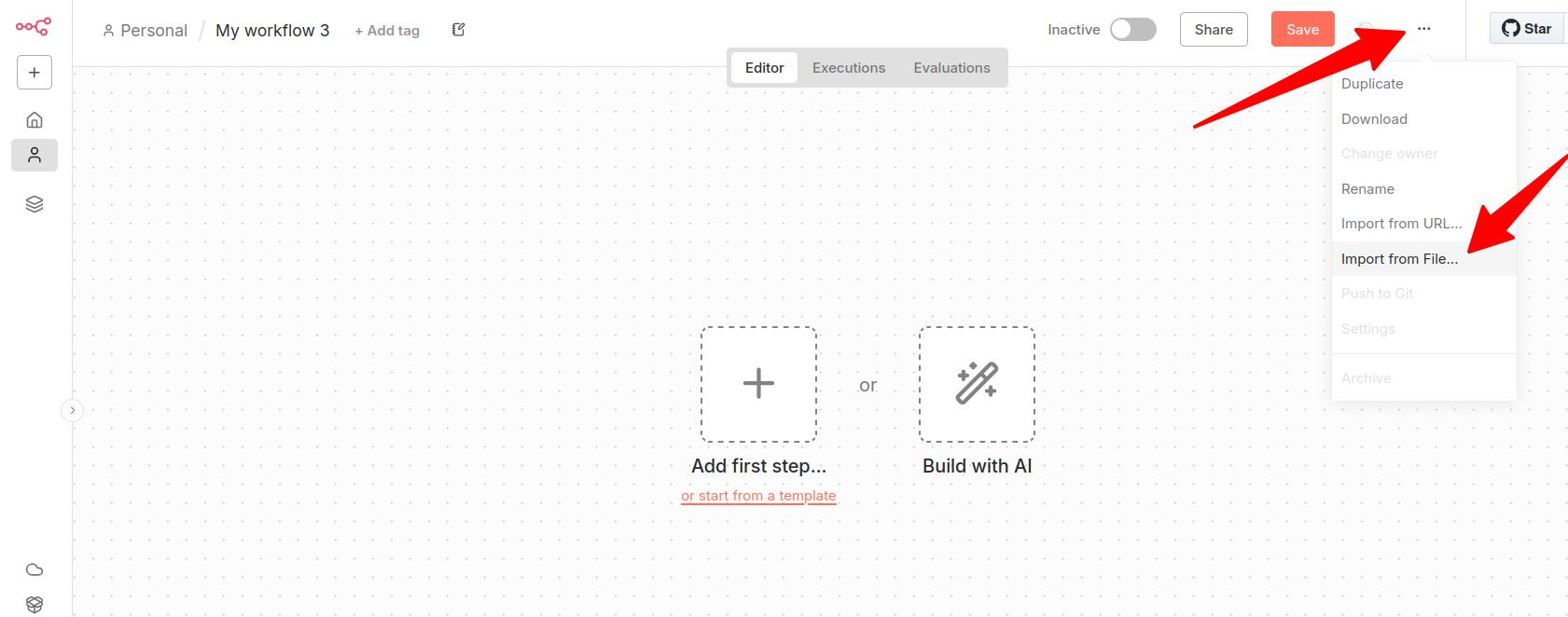
2. Click the three dots (...) in the top-right corner.
3. Select Import from file and choose `voicegenie_workflow.json`.
***
#### Step 3: Add Credentials
1. Double-click the "VoiceGenie Place Call" node.
2. Replace `YOUR_API_KEY_HERE` and `YOUR_WORKSPACE_ID_HERE` with your details from the dashboard.
ZOHO Platform Integration
VoiceGenie integrates with Zoho using a single, consistent integration pattern.\
All VoiceGenie Public API actions, such as placing calls, fetching call status, managing campaigns, or syncing inbound calls, are triggered in the same way from Zoho.\
Once the integration is set up, you can reuse the same workflow structure for all API actions by changing only the endpoint and request payload.
### **Steps to follow to integrate voice genie api calls in zoho**
### Step 1: Create a Workflow
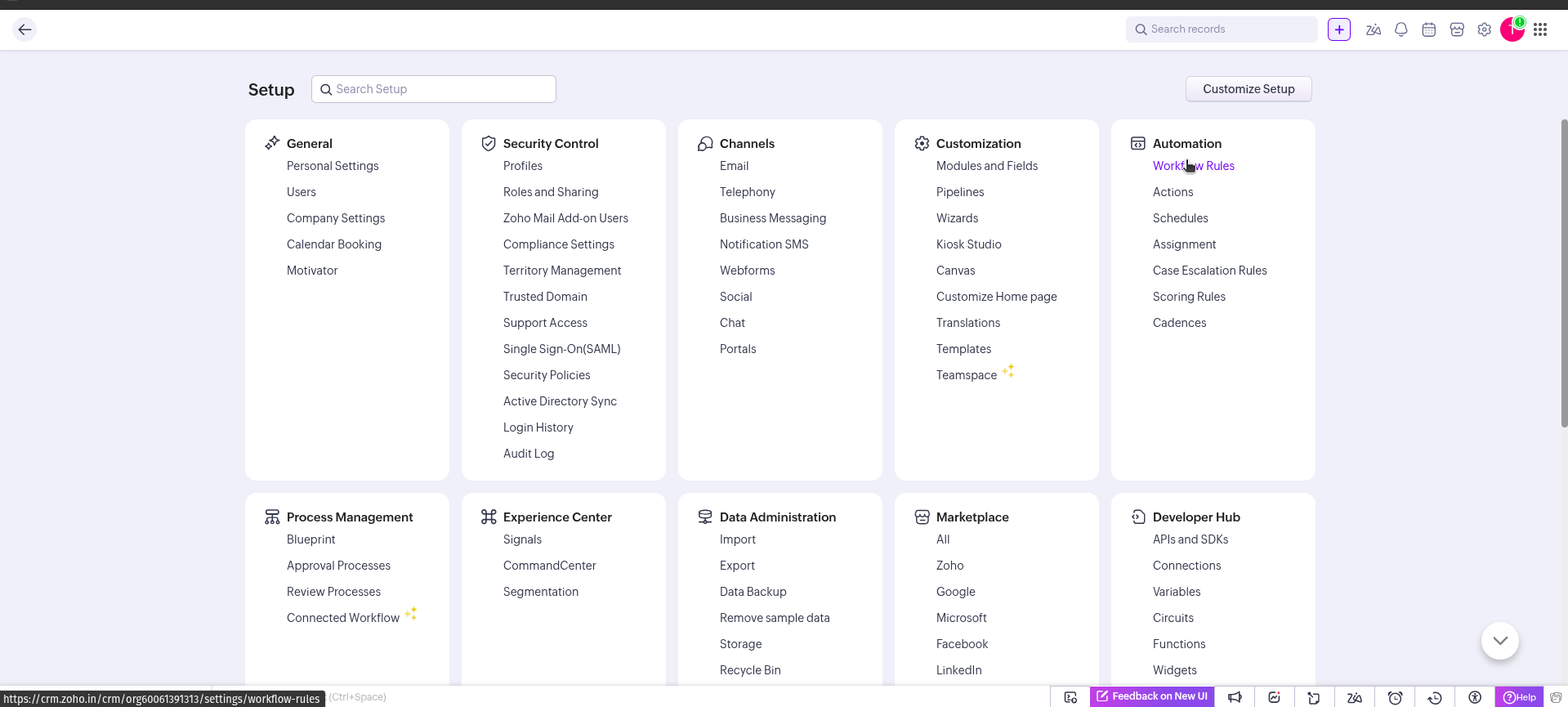
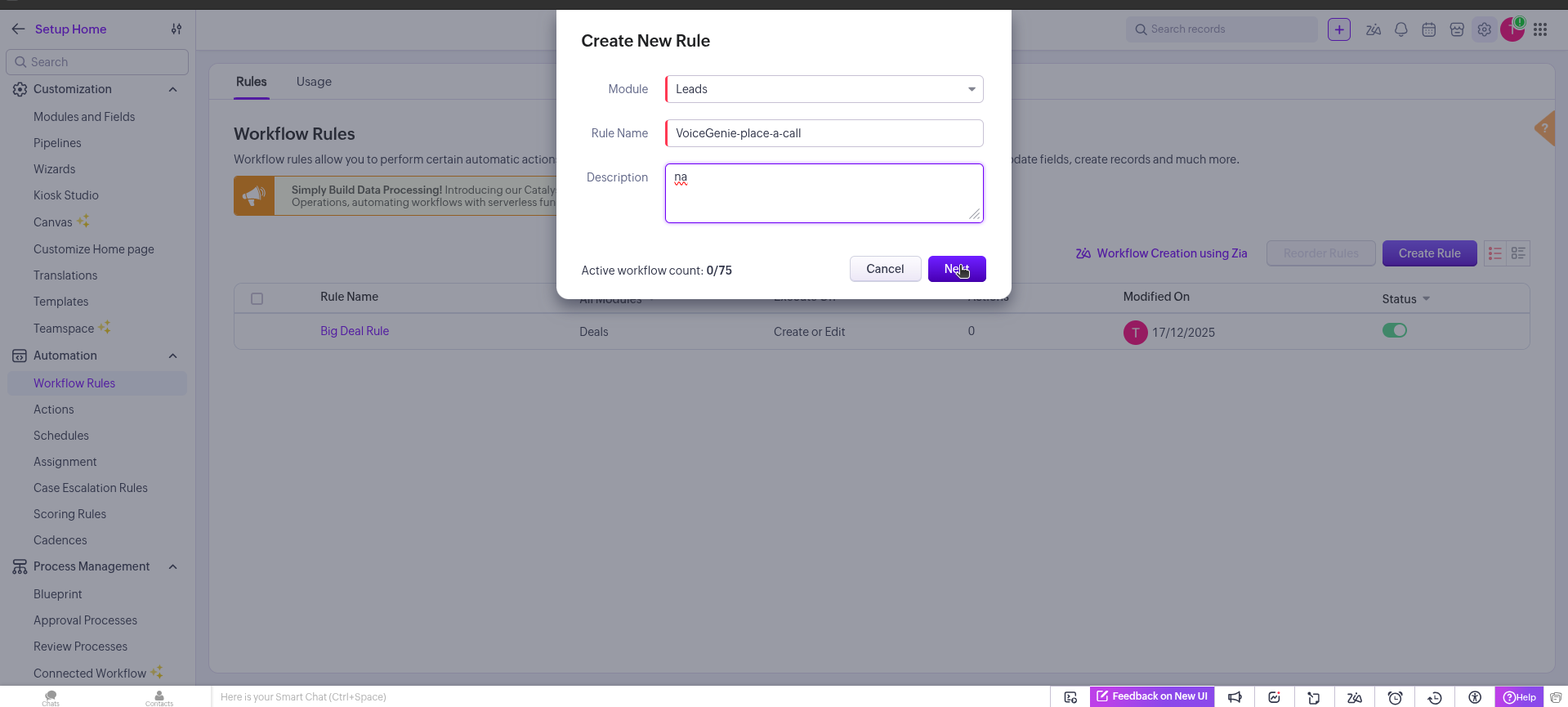
1. Go to **Zoho CRM → Setup → Automation → Workflow Rules**
2. Click **Create Rule**
3. Select the **module** (Leads, Contacts, Deals, etc.)
### Step 2: Add a Webhook to the Workflow
1. Open the workflow you just created
2. Click **Add Action → Webhook**
3. Enter a **Webhook Name** (e.g., “VoiceGenie – Place a Call”)
4. Set **URL** → `https://core-saas.voicegenie.ai/api/v1/publicRestApiActions/placeCall`
5. Select **Method: POST**
6. Set **Content Type: application/json**
7. Add the **JSON Request Body** with Zoho merge fields and VoiceGenie API parameters
8. Click **Save**
### Step 3: Save and Test
1. Save the webhook
2. Create a test lead in Zoho with phone & email
3. Check **VoiceGenie dashboard** to see if the call was triggered
This method applies uniformly to all VoiceGenie actions, including:
* Place a Call
* Get Call Analysis or Status
* Pause or Resume Campaign
* Fetch Inbound Call Updates
* Check Call Transfer Status
* Remove Customer from Campaign
(1).png?alt=media&token=ddf0c646-a9b0-4775-b023-5a3e9b6b4f23)
.png?alt=media&token=3bea6358-d46e-410f-bc56-cecc422de74d)